
Turn a spare iPad into a family dashboard
Give everyone a place to check the day with Family Flight Plan. Turn a compatible spare iPad into a shared dashboard for schedules, chores and dinner, then keep the plan up to date from your phone. One paired iPad display is included free.
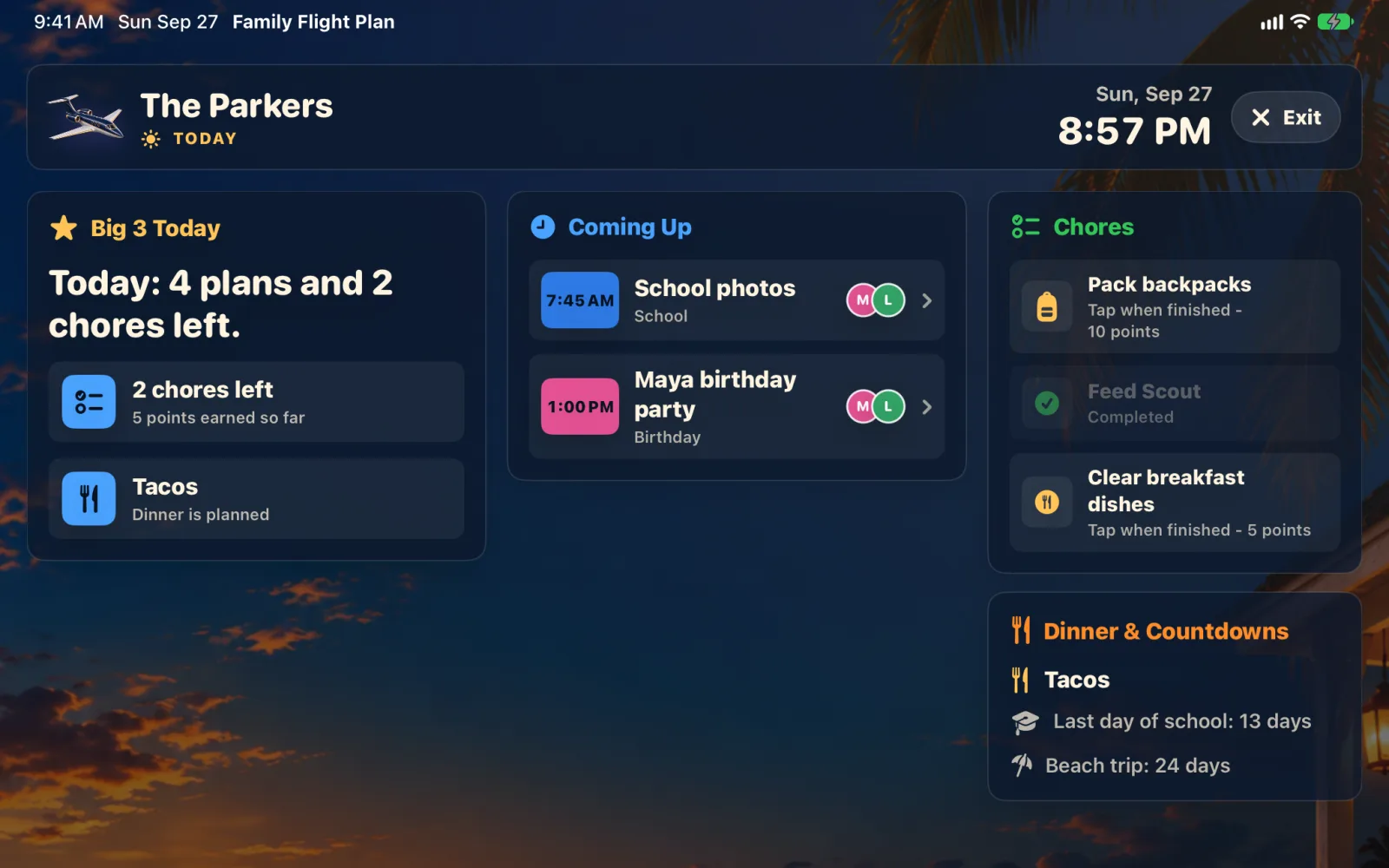
1. Check the iPad before you make a place for it
Paired iPad family displays arrived in Family Flight Plan 1.2. See What’s new for every release.
Check that the iPad can run iPadOS 18 or later and install Family Flight Plan from the App Store. A spare iPad can be useful here, but some older models cannot run the app. Check compatibility before buying a stand or choosing a permanent spot.
Choose a stable place where the screen is easy to read and the charging cable can reach. Keep it away from splashes and cooking heat. Try a counter or shelf for a few days before deciding whether to mount anything.
The display needs an internet connection to receive changes. Plan to leave Family Flight Plan open when you want the shared dashboard visible.
2. Start the family plan on your own device
On your iPhone or another iPad, open Family Flight Plan, sign in, and create your family. This is the device you will use to add events, meals and chores and approve the shared iPad.
Begin with a small amount of real information: the next appointment, a pickup time, dinner tonight and one chore. You can invite the rest of the household and build out the week once the display is working.
Manual family events are included in the free plan. Importing calendars from Apple Calendar, including Google or Outlook accounts added to the device, and adding ICS subscriptions require Plus. You can compare Free and Plus before deciding whether you need import.
Start your family plan free Put the calendar, chores and meals together in Family Flight Plan.
3. Pair the spare iPad as a family display
- Open Family Flight Plan on the spare iPad. On its first screen, choose Use This iPad as a Family Display.
- Leave the pairing screen open. It shows a QR code and a six-digit code.
- On the family manager’s signed-in iPhone or iPad, open Settings → Displays.
- Scan the QR code or enter the six-digit code, then approve the iPad.
- Wait for the shared plan to load, then check that your first event appears.
When scanning a QR code, review whose reminders the display shows and whether it can mark things done before approving. With six-digit code entry, review those options afterward in Settings → Displays.
The paired display does not need its own email sign-in. The family manager approves its access from their own device. If the code expires while you are setting things up, use the current code shown on the iPad.
4. Decide what the display can do
You can change the iPad’s settings any time in Settings → Displays on the manager’s device. Allow marking things done controls whether people can complete chores, routine steps and checklist items from that display. It starts off, so turn it on in the QR approval sheet or later in Settings if you want the kitchen screen to double as a checklist.
If you want the dashboard to remain visible, enable Keep Screen On for that display. This stops auto-lock while the display is open. It does not reopen the app after someone closes it.
Private and adults-only events do not appear on the shared display. Busy-only events show as “Busy.” Review event visibility before placing the iPad where visitors can read it, and check the screen itself to see what your household will see.
5. Let the display earn its place
For the first week, focus on today’s schedule, dinner and the few tasks that matter before the next departure. Ask everyone to check the screen at breakfast and again when they get home. Notice which questions it answers and which information is still missing.
One paired iPad display is included free. Plus allows up to four paired iPad displays and adds premium and seasonal themes and photos on the Family Board. Start with the free display and add Plus if it fits how you use it.
A paired iPad offers Today, Week, Routines and Board with manual panel controls. The signed-in iPad Shared Display mode also offers Plus ambient rotation and display schedules. Choose the mode that fits how you want to use the iPad.
You can also use an optional Apple TV family calendar display. For a repeatable way to keep either screen useful, try the 15-minute weekly planning routine.
Give that spare iPad a daily job.
Download Family Flight Plan, add your first event and pair the kitchen iPad. The family calendar, chores, meals and one paired iPad display are included free. Plus adds more displays and premium features when you want them.