
How to set up a kitchen family command center
Give your household one place to check the day with Family Flight Plan. Put schedules, chores and dinner on the kitchen iPad or Apple TV, and update them from your phone. These morning, afternoon and evening examples show how to make the shared plan part of your daily routine.
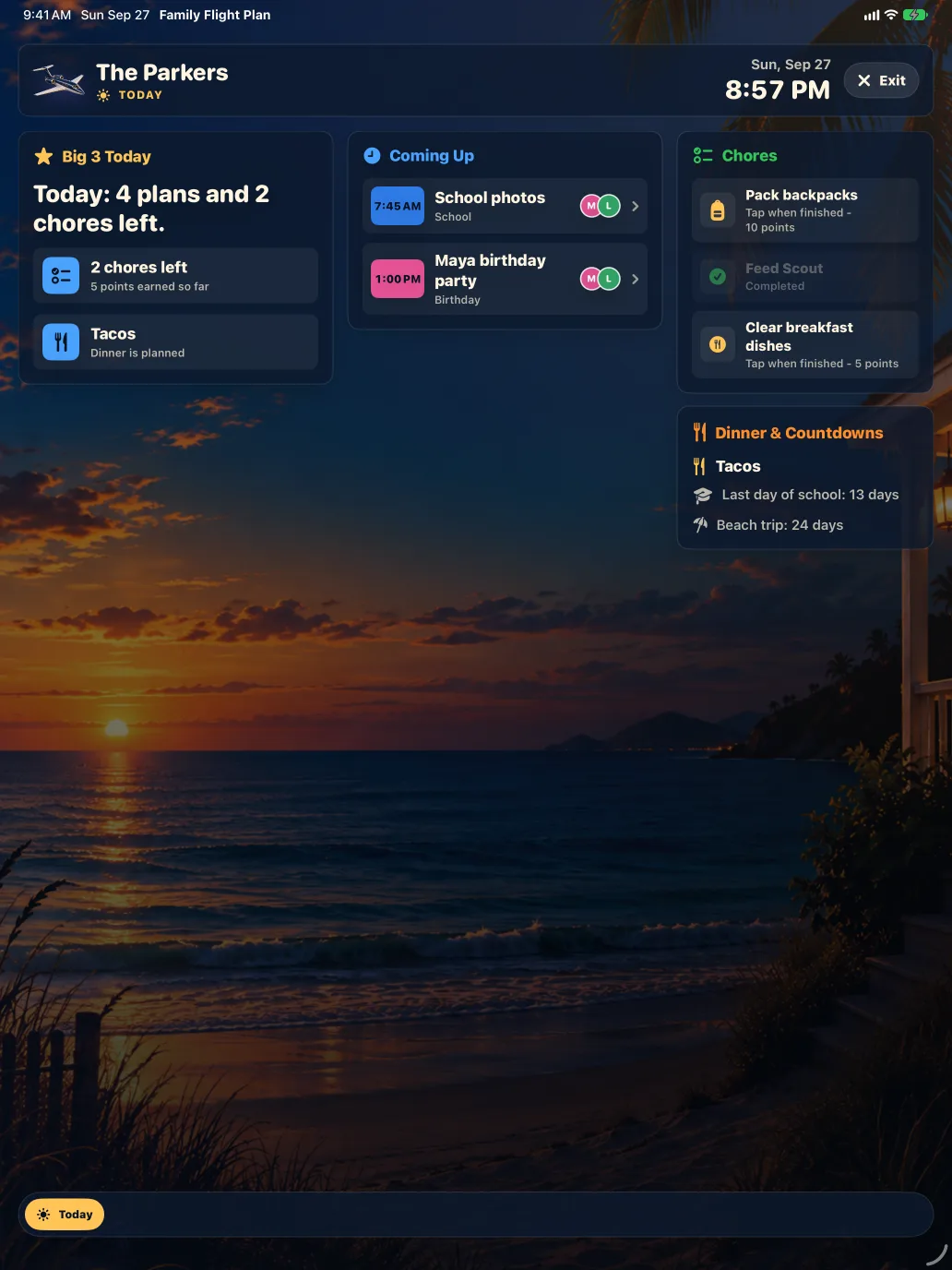
Choose the place before you choose the screen
Look for somewhere adults naturally check while making breakfast or arriving home. A counter, shelf or nearby television may work. Read the screen from the actual viewing distance and make sure it is not hidden behind the things that collect there.
Family Flight Plan gives you two ways to share the day at home: an iPad for a close view and touch actions, or a television connected to Apple TV for viewing from farther away. Start with compatible hardware you already own and give the family display a place in the room.
Make room for charging or power, with cables out of the way. Keep the screen away from splashes and cooking heat. A place for bags, forms or keys can sit nearby, but give paper items their own small space so they do not cover the display.
Give each kind of information a clear home
- Calendar: appointments, departures, practices and other commitments with a date or time.
- Chores and routines: household jobs and repeated sequences, with an owner where appropriate.
- Meals: the dinner decision and any useful preparation note.
- Family Board: a shared note, reminder or link that needs a visible home.
Begin with the current day and the next important handoff. The command center does not need to display every detail in everyone’s life at once. Put sensitive details in the right private setting rather than on a screen that visitors can read.
Start your family plan free Put the calendar, chores and meals together in Family Flight Plan.
Morning: confirm departures and handoffs
At breakfast, check the day’s first departure, anything different from the usual routine, and who is handling each trip. Keep the conversation specific enough that the next person can act on it.
Example: the plan has an 8:15 departure, a 3:30 pickup and tacos for dinner. Alex handles the morning drive; Jordan handles pickup. A board note says the activity bag needs to leave with the morning driver. Before anyone walks out, confirm the bag and the handoff.
In Family Flight Plan, check Today, then open an event’s details if you need the place or notes. Use a short morning routine checklist for the repeated preparation steps instead of adding a separate calendar appointment for every action.
Afternoon: update the plan when something changes
When the household starts coming home, check the next event and any remaining chores. If a pickup, appointment or dinner plan changes, update the shared item and tell the person affected.
Example: practice moves from 5:00 to 5:30. The person receiving the message changes the family event and confirms the new pickup arrangement with the driver. Dinner becomes leftovers, and the meal plan is updated too.
A synced display helps keep the decision visible, but changes can take time to arrive. For a last-minute handoff, contact the person directly rather than assuming they have already looked at the screen.
On a paired iPad, a family manager can enable task completion from that display. Adding and editing the schedule happens on the signed-in iPhone or iPad.
Evening: close today and prepare tomorrow
At dinner or during the evening reset, check what is still useful to finish. Then look at tomorrow’s first event and decide what should be ready before bed.
Example: tomorrow starts with a 7:40 departure and an appointment at 9:00. Tonight’s short list is to pack the bag, set aside the form and confirm who is driving. The kitchen cleanup stays in the evening routine; the appointment stays in the calendar.
Decide when the display should stop being part of the evening. Family Flight Plan Plus offers display schedules and ambient rotation on Apple TV and the signed-in iPad Shared Display. A paired iPad family display uses manual panel controls. A basic display can also be a simple dashboard you open when the household needs it.
Keep the command center worth checking
Use a weekly planning check-in to catch the details scattered across messages and calendars. Agree on who updates each change during the week. A small plan that stays current is easier to trust than a screen full of old reminders.
After a week, ask which questions the display actually answered. If dinner is still a daily question, make the meal plan easier to find. If a handoff is still unclear, add the responsible person to the event details. Change the information before adding more hardware.
Ready to try the screen? Follow the spare-iPad setup guide or the Apple TV setup guide. Both explain the requirements and the difference between Free and Plus.
Your kitchen command center starts here.
Start free on iPhone or iPad. Add today’s schedule, dinner and a few chores, then show the plan on a compatible iPad or Apple TV. You can build a useful shared family screen with hardware you already own.