
How to turn your Apple TV into a family calendar display
Put the day’s answers on the TV with Family Flight Plan: who’s going where, what’s for dinner and which chores are left. Add plans from your iPhone or iPad and give the whole household a shared screen to check. One Apple TV display is included free.
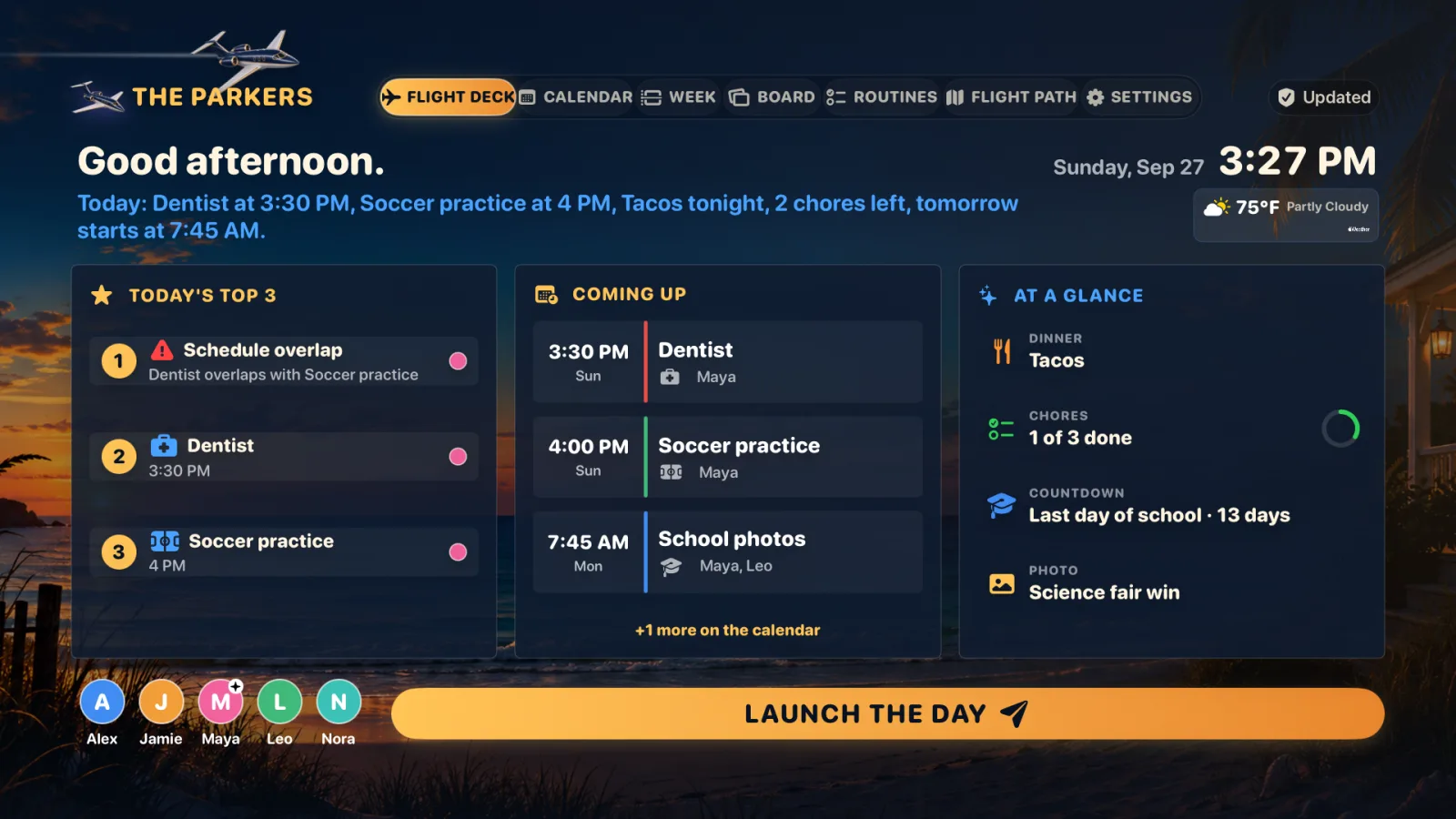
1. Check the hardware and software requirements
You need an Apple TV device that can install the app and run tvOS 18 or later, plus a television connected to it. Having the Apple TV streaming app on a smart television does not by itself give that television the Family Flight Plan tvOS app.
You also need a signed-in iPhone or iPad running iOS or iPadOS 18 or later. A family manager uses that device to create the family and approve the TV. Keep both devices online during pairing and while you want changes to sync.
If you already own compatible hardware, you can try the free display without buying another screen. If you would need a new television or Apple TV just for this, price those separately and consider whether a spare iPad display would fit the room better.
2. Create the family plan on iPhone or iPad
Install Family Flight Plan on your iPhone or iPad. Sign in with your email and the one-time code, then create your family. Add a few real items: the next appointment, tonight’s dinner and a chore with a clear owner.
The phone or iPad is where you enter and edit the plan. You do not need to type calendar details with the Siri Remote. Manual family events are included free; importing external calendars requires Plus.
Start your family plan free Put the calendar, chores and meals together in Family Flight Plan.
3. Install and pair the Apple TV app
- Open the App Store on Apple TV, find Family Flight Plan, and install it.
- Open the app. The pairing screen shows a QR code and a six-digit code.
- Use the Camera on your iPhone or iPad to scan the QR code. Open the link in Family Flight Plan, review the display, and tap Approve as a family manager.
- Alternatively, open Settings → Displays in the signed-in companion app. Scan the display’s code there or enter the six-digit code and approve it.
- Leave the TV app open while it finishes pairing and loads your family’s shared plan.
If approval fails because the code expired, use the current code shown on the television. If you have reached the plan’s display limit, remove a display you no longer use before pairing another one.
Confirm the connection by adding or updating one event on your phone. Give the television time to refresh. If it stays out of date, check both devices’ internet connections, then choose Refresh now in the TV app’s Settings.
4. Choose what the room needs to see
Start with the daily dashboard for what matters now. Use the week or month view to discuss upcoming days, and open routines or the Family Board when those are useful. The Siri Remote can move between views, open details, react and mark supported tasks done where permitted.
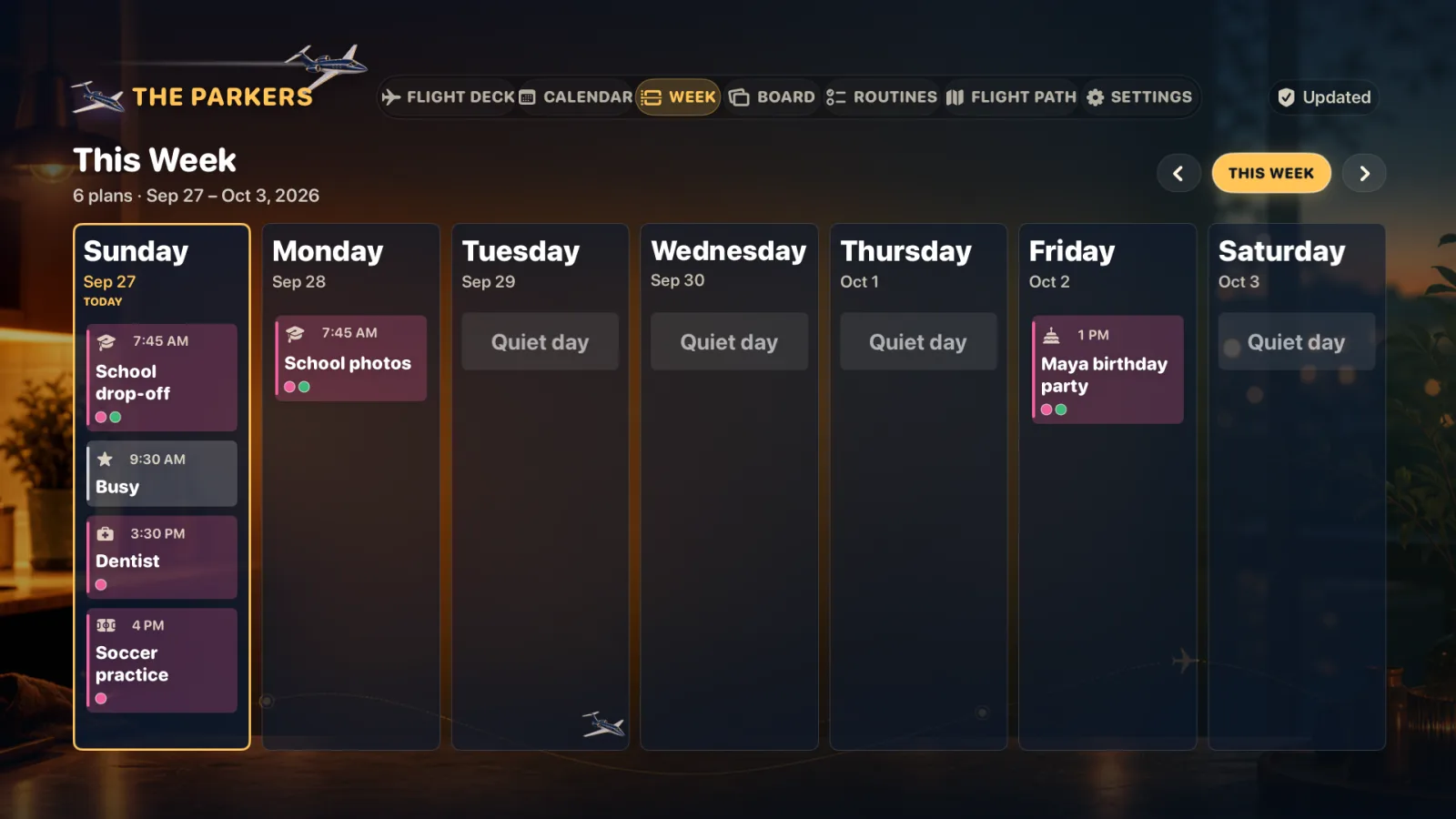
Test readability from where people will actually stand or sit. A large TV across a room and an iPad beside the breakfast table serve different jobs. Choose the view people can read easily from that spot.
Review event visibility before leaving the dashboard in a shared room. Private and adults-only events do not appear on the shared display; busy-only events show as “Busy.” Other visible information can still be read by someone standing in front of the TV.
5. Check screen saver and sleep behavior
In the TV app’s Settings, review Keep display awake. It lets the app hold off idle behavior while the dashboard is open. Your television’s own sleep timer still applies.
Apple TV also has screen saver settings. Apple explains that the screen saver normally starts after a preset idle interval; its Start After setting controls that interval. Menu names can vary with tvOS version. See Apple’s screen saver guide if the dashboard is being replaced unexpectedly.
This is a foreground app. Switching to a streaming app, another HDMI input or the Apple TV Home Screen takes the family dashboard off the screen. It does not overlay your television shows or automatically turn any television into an uninterrupted wall calendar.
What does it cost?
- Free: one paired Apple TV, the family calendar, chores, routines, meals, Family Board and the basic shared dashboard.
- Plus: $49.99 per year or $6.99 per month for the household at the US App Store prices checked November 6, 2026. Plus includes two Apple TVs, calendar import, faster TV refreshes, weather, ambient rotation and additional themes.
- Hardware and running costs: a television and Apple TV if you do not own them, any cables or mounting accessories, internet service and electricity. Those are separate from the app.
The annual Plus plan offers a two-week free trial for eligible new subscribers. Check the App Store listing and purchase screen for current local prices and eligibility. You can compare the plans before subscribing.
Keep your shared plan current
Calendar changes need a connection and time to sync. Free TVs normally poll every five minutes while open; Plus TVs normally poll every 30 seconds, and change notifications may refresh them sooner. Neither is a promise of an instant update. A cached dashboard may remain visible during a temporary outage, so check freshness before relying on a last-minute change.
Use your signed-in iPhone or iPad to add and edit plans, and the TV for the shared view and remote actions. Family Flight Plan runs on Apple devices. Calendar import requires Plus. Importing doesn’t change your original calendars, and Plus can also save events you create in Family Flight Plan to an Apple calendar.
Want the plan available while the television is being used? Add Family Flight Plan’s iPad family display in the kitchen. Your plan also stays available on the signed-in iPhone or iPad. See the kitchen command center guide for ways to use those screens through the day.
Put your family’s day on the big screen.
Download Family Flight Plan on iPhone or iPad, add your first plan and pair your Apple TV. One TV display, the family calendar, chores and meals are included free. Choose Plus when you want calendar import, weather and ambient rotation.